
How to Use Krira TV on Android
Once you’ve installed Krira TV and open it for the first time, you’ll get it right away—there’s no live sports app out there that’s easier to use! Here’s a step-by-step guide on how to fire up a match in just 10 seconds.
What to Do the First Time You Open the App (Takes 10-15 Seconds)
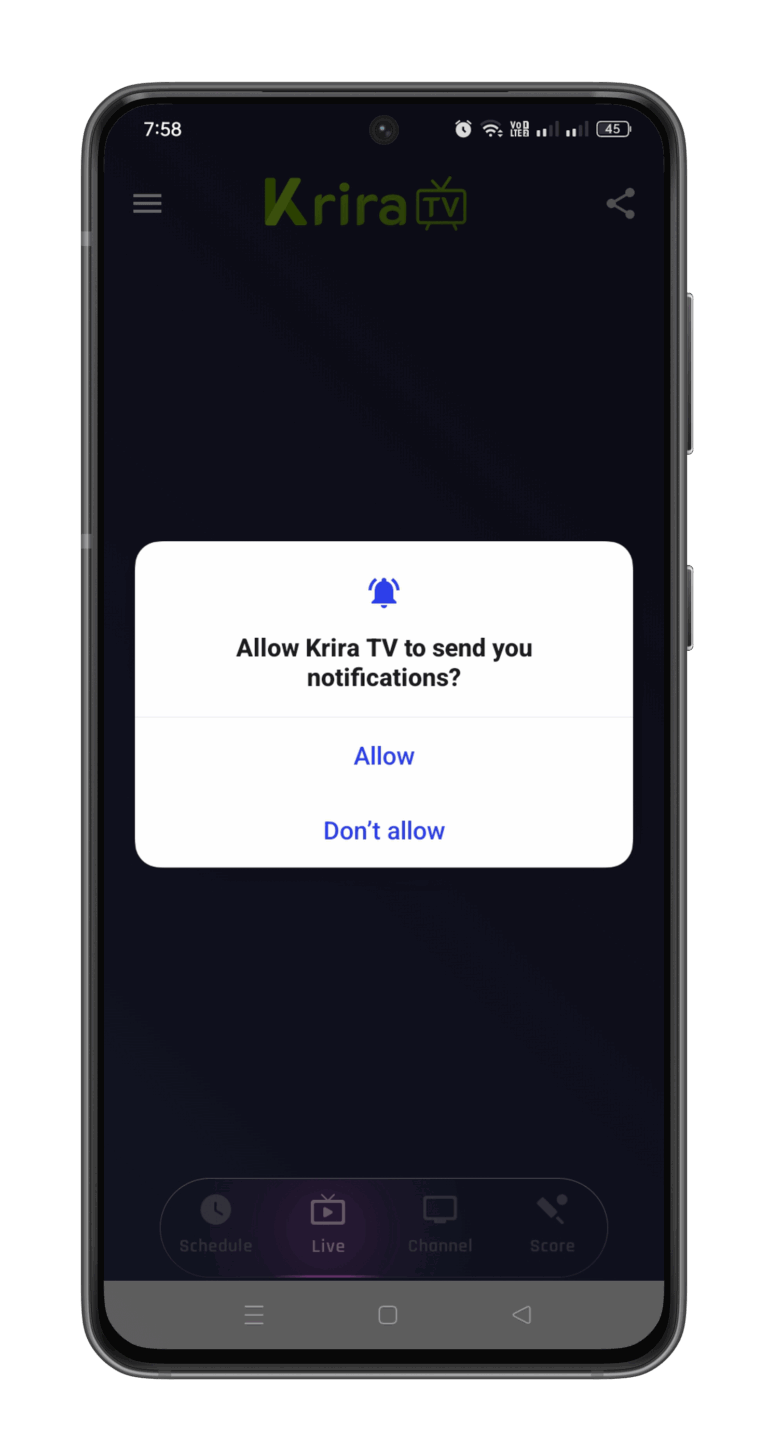
Allow the Notification Permission
(That’s so you get an auto alert 10 minutes before your favorite match kicks off.)
What’s on the Home Screen?
| Tab Name | What You’ll Get |
|---|---|
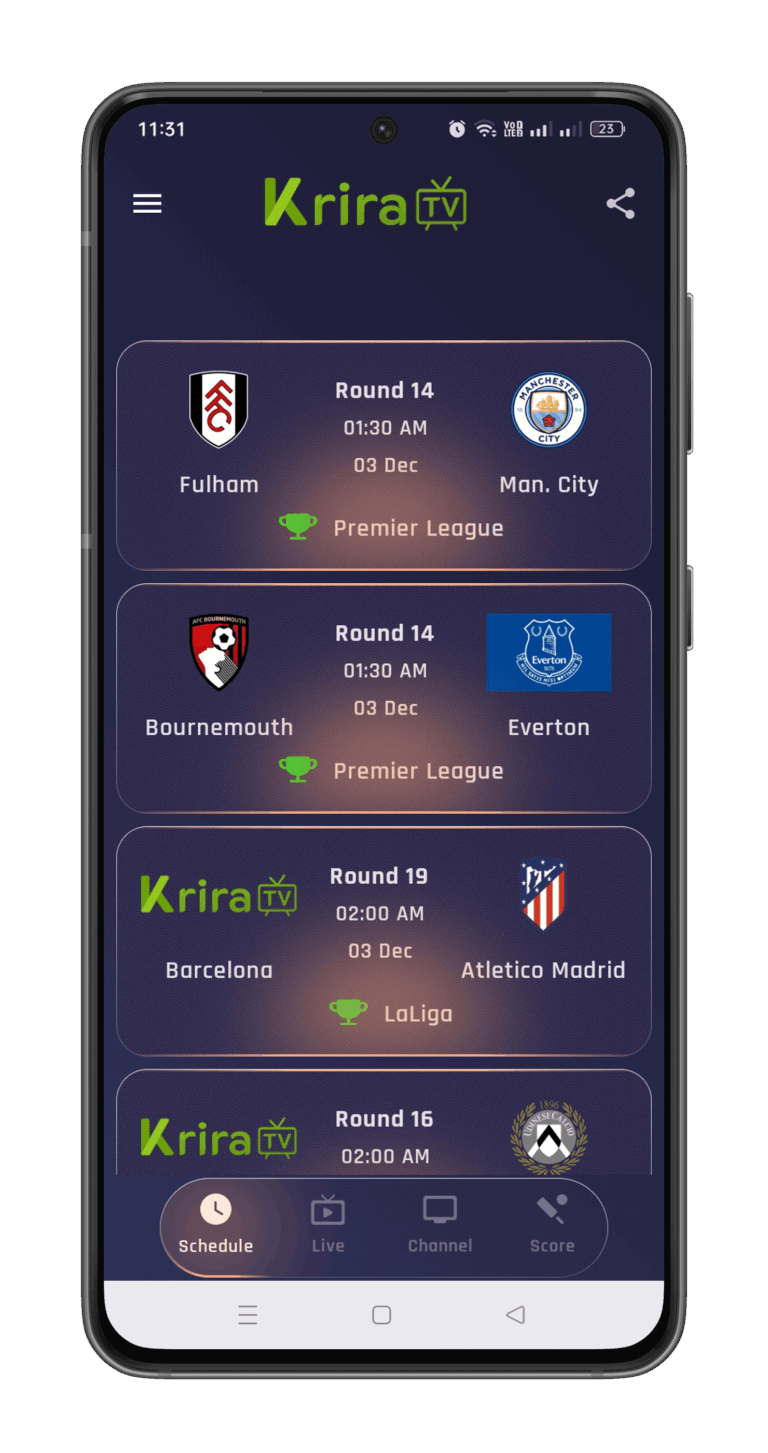
| Live | All the matches happening right now—cricket, football, kabaddi, you name it—right at the top. |
| Schedule | The full list and schedule for today’s matches plus the next 7 days. |
| Channel | TV channel lists sorted by category (Star Sports, Sony, PTV, GTV, and more). |
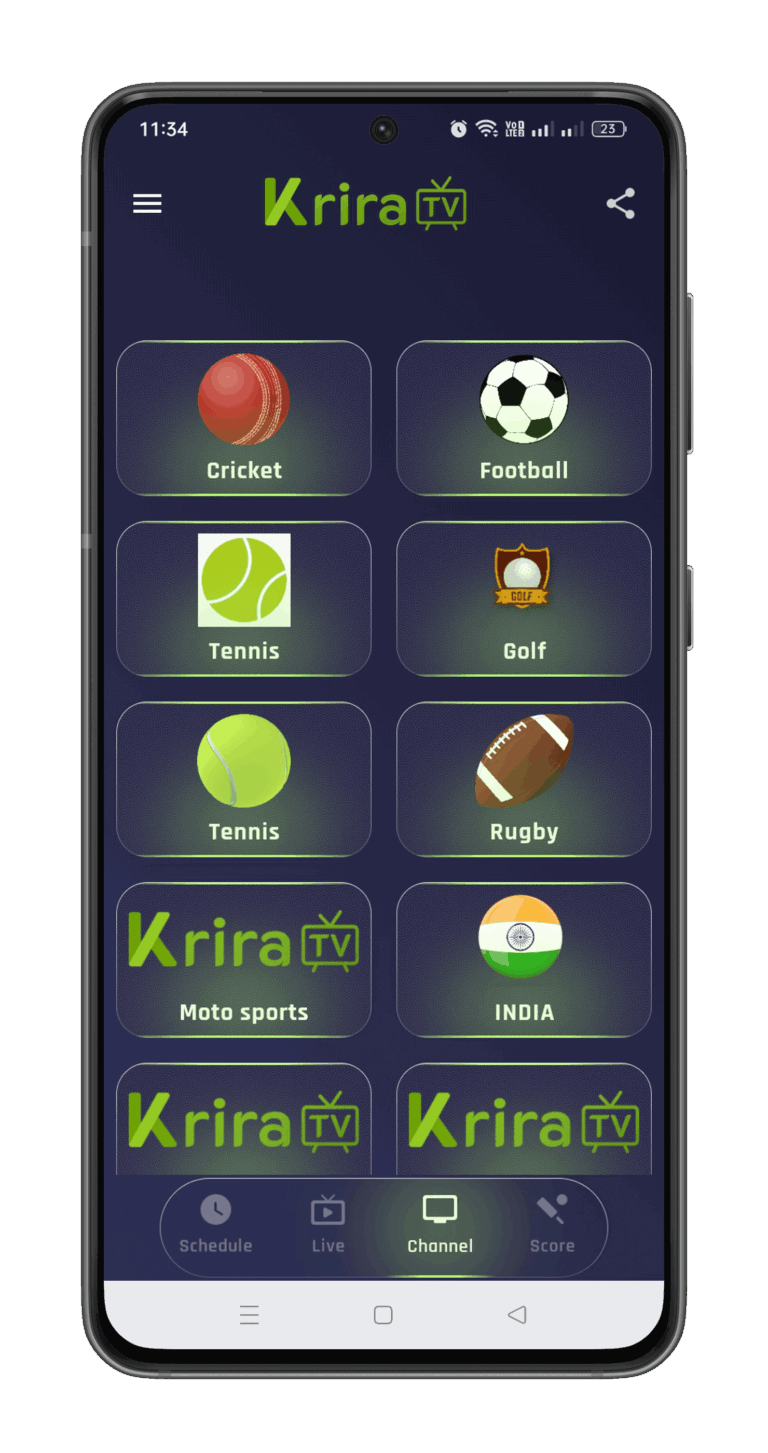
How to Start a Match?
Head to the Live or Schedule tab and tap your pick.
The new page shows 5-8 servers → Server 1 auto-plays by default.
↳ If it doesn’t work, tap the next server (it loads in 2-3 seconds).
How to Switch Video Quality and Commentary?
Once the player starts, tap the Settings icon at the bottom.
Video Quality → Pick 360p / 480p / 720p / 1080p.
Text/Commentary → Choose Bangla / Hindi / English.
How to Use the Awesome Features?
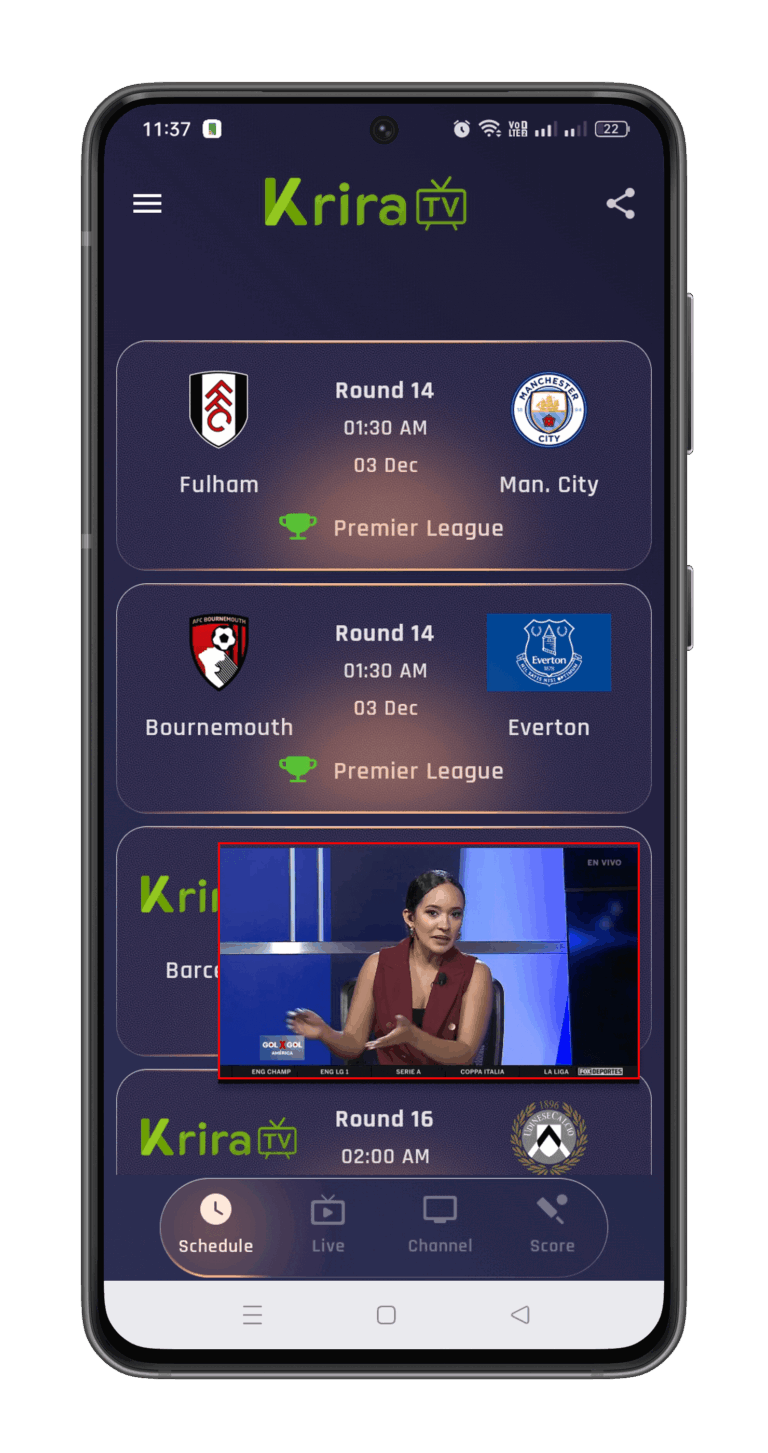
PiP Mode (Picture-in-Picture) → Tap the PiP icon on the player to shrink it to a small window.
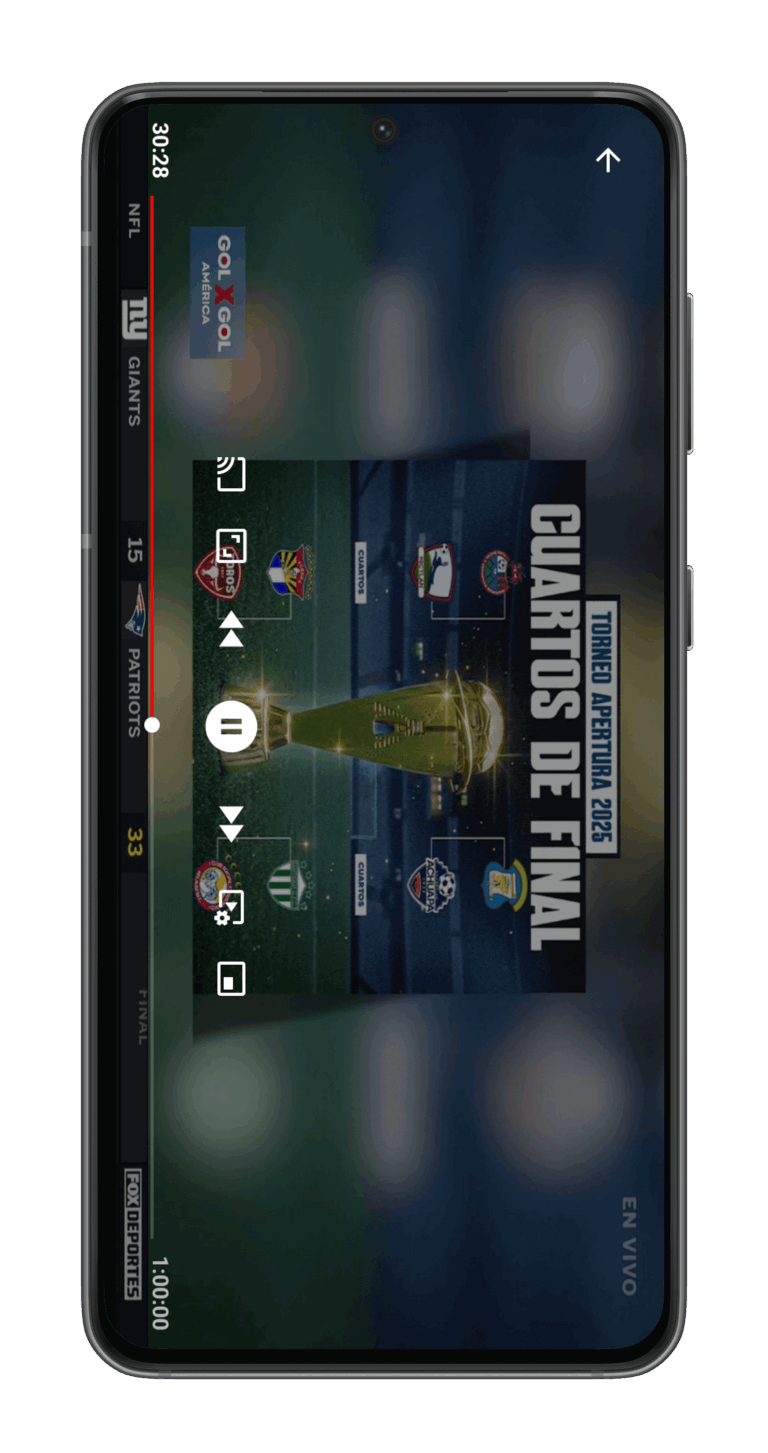
Fullscreen → Just rotate your phone sideways for landscape mode.
Cast to Chromecast/TV → Tap the Cast icon on the player → Select your TV.
4 Quick Fixes If Buffering Hits:
Switch servers (Server 1 → Server 2/3/4).
Drop the quality to 360p.
If you’re on mobile data, switch to Wi-Fi.
Close all background apps.
And that’s it! From now on, you’ve got a whole stadium in your pocket.
Open Krira TV → Pick your match → Hit play → Sit back and enjoy!